Mozilla Thunderbird and MS Outlook are popular email clients used by individuals and enterprises for email communication. However, Outlook provides additional functionality and features, like collaboration with other applications (Word, Excel, Notes, Teams, etc.), enhanced data security measures, etc. In addition, there is a web-based Outlook version (Outlook on the web) that allows users to access emails via an internet browser.
Due to these and other reasons, many users look for ways to migrate from Thunderbird to Outlook. However, it is not a straightforward process to migrate from one email client (Thunderbird) to another (Outlook). This is because Thunderbird stores emails and other mailbox items in MBOX file, which is not supported by MS Outlook. As the latter supports the PST file format, you need to convert the Thunderbird emails (MBOX file) to PST format.
The only way to export Thunderbird mailbox data (MBOX file) to PST file format is by using a specialized MBOX to PST converter tool. In this article, we will explain the stepwise process to export the Thunderbird emails to Outlook PST.
Stepwise Method to Export Mozilla Thunderbird Emails to Outlook
Let’s look at the step-by-step process to export Thunderbird emails to Outlook PST in detail. The process is divided into three steps for better understanding.
Step 1: Install the ImportExportTools NG in Mozilla Thunderbird
First, you need to install the ImportExportTools NG add-on in Thunderbird to export the emails and other items to MBOX file. For this,
Note – Skip this step if you have already installed the ImportExportTools NG add-on in Thunderbird.
- Launch Mozilla Thunderbird on your Windows PC.
- Click on the Gear icon to open Settings.
- Next, click on the Add Ons and Themes option.
- It will open the Add-Ons Manager in a new tab. Use the search bar to search for the ImportExportTools NG add-on. Install it.
- Relaunch Mozilla Thunderbird.
Step 2: Export Thunderbird Mailbox Items to MBOX File
The next step is to export the emails and other mailbox items to MBOX file using the ImportExportTools NG add-on. Here’s how:
- While in Thunderbird, locate the mailbox folder that you want to transfer to Outlook. Select it and right-click on it.
- Go to ImportExportTools NG > Folder Export (mbox) > As mbox File.
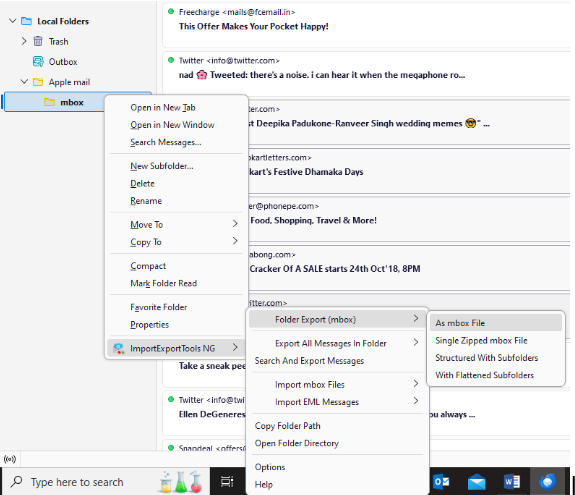
- The Select the destination directory window will appear. Select the location and click on Select Folder.
- The add-on will export and save the selected Thunderbird mailbox folder at the destination folder in MBOX file format.
Step 3 – Convert the Thunderbird Emails (MBOX) to Outlook PST using an MBOX to PST Converter Tool
Once you have successfully exported Thunderbird emails and other data to MBOX file, you need to convert it into Outlook-compatible PST file format. For this, you can use a free online MBOX to PST converter tool that lets you quickly convert MBOX file to PST file format via a web browser. However, you can use this online MBOX to PST converter tool if your MBOX file is ≤100 MB in size.
If you want to convert larger MBOX files, you can use the desktop version of this MBOX to PST converter tool – Stellar Converter for MBOX. It is a powerful MBOX to PST converter that helps you export Thunderbird MBOX file to Outlook PST while keeping the folder structure intact. You can save the mailbox items, such as emails, calendars, notes, contacts, etc., to PST and other formats with complete accuracy.
Here are the steps to convert the Thunderbird MBOX file to PST file using the tool:
- Download and install Stellar Converter for MBOX on your Windows PC.
- Launch it.
- The Select MBOX window will appear.
- Select the email client (Thunderbird) from the Select Mail Client dropdown menu. The software will automatically select the default file path for the MBOX file on your PC.
Note – If you want to select an MBOX file stored at any other location on your PC, click on the Select Identity button.
- After selecting the MBOX file, click on Convert.
- The software will start scanning the selected MBOX file. Once the scan is complete, the software will display all the mailbox items in a tree-view structure. Select any mailbox item to see its detailed preview.
- After previewing the mailbox items, click on the Save Converted File button in the ribbon.
- The Save As window will appear. Choose the Save As PST option and click Next.
- Click on Browse to choose the destination folder. Click Save.
You have successfully exported the Thunderbird emails (MBOX file) to Outlook PST file format. Now, use the Outlook’s import/export wizard to import the PST file into Outlook.
Conclusion
There is no option to directly export Thunderbird emails to Outlook PST. The only way to do this is to convert the MBOX file (containing Thunderbird emails) to a PST file using an advanced MBOX to PST converter, like Stellar Converter for MBOX. This software can help you convert Thunderbird mailbox data into Outlook PST file while retaining the original folder hierarchy, data, and attachments. After conversion, you can simply open or import the converted PST file into your Outlook account.